$ cat catch-with-godot.md
In this tutorial you build a small game in Godot, a free game engine used for real, released games: a paddle you move with the arrow keys, something falling from the sky, and a score that goes up every time you catch it. It's the same game as the Scratch and HTML, CSS & JavaScript tutorials. In this one, the thing falling from the sky is the Godot logo.
You need: Godot 4, from godotengine.org/download. Take the standard version, not the .NET one. There's nothing to install: unzip it and run it. The screenshots are Godot 4.7. It takes about an hour.
Stuck at any point? Every step has a download of
the project as it should be. Unzip it, then in Godot's Project Manager use
Import and pick its project.godot. Compare it with yours.
Step 1 — Make the project
Start Godot. The Project Manager opens. Click Create and fill in:
- Project Name:
Catch - Project Path: a new, empty folder
- Renderer:
Compatibility. It runs on any laptop, and it's the one that can export to the web later.
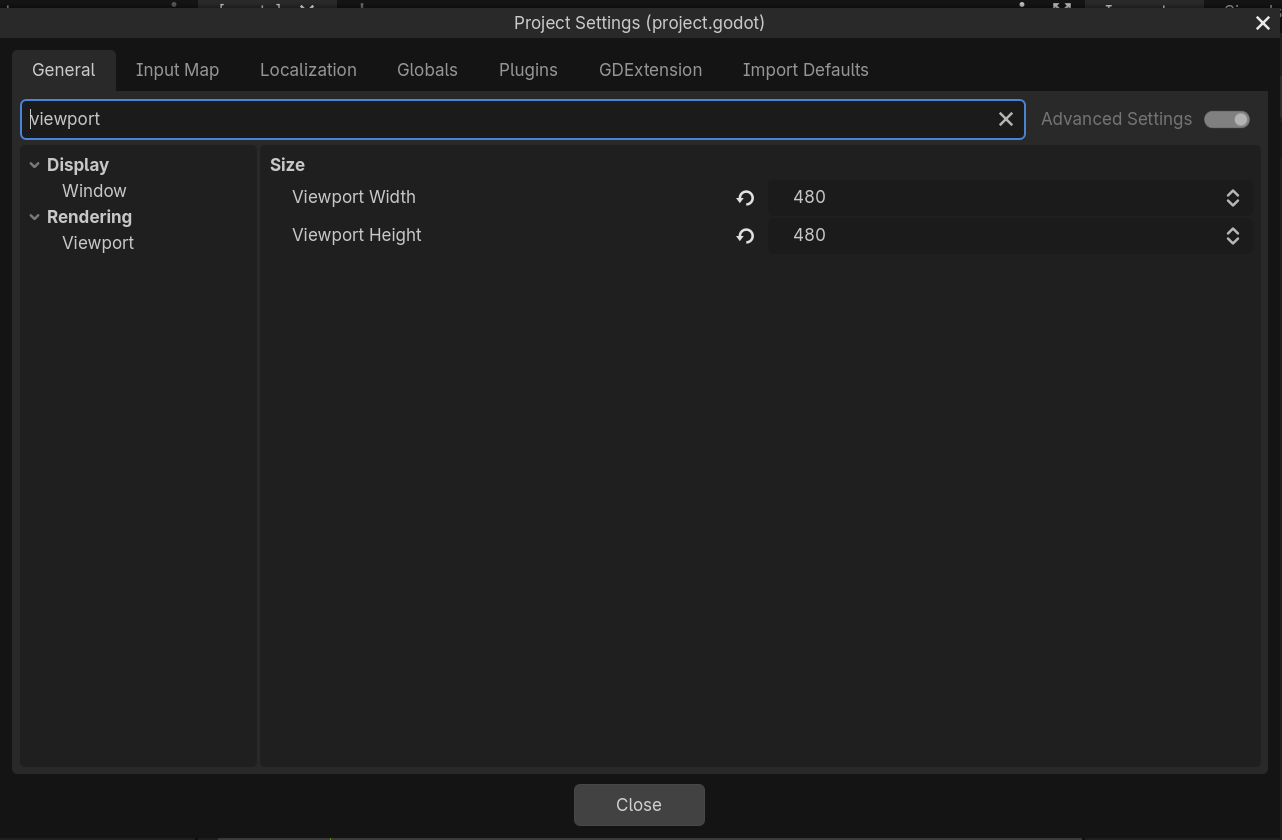
Click Create & Edit. Now make the game window a 480 by 480
square: Project → Project Settings, type viewport in
the search box, click Window and set both
Viewport Width and Viewport Height to
480:
Step 2 — Build the scene
Everything in Godot is a node: a sprite is a node, a sound is a node, a piece of text is a node. Nodes go in a tree, and a tree of nodes saved to a file is a scene. Our game is one scene.
In the Scene dock on the left, click 2D Scene.
That makes a Node2D; double-click it and rename it
Main. Now add children to it. Select a node and press
Ctrl+A (or the + at the top of the dock). The
Create New Node dialog opens. Search for the type you want:
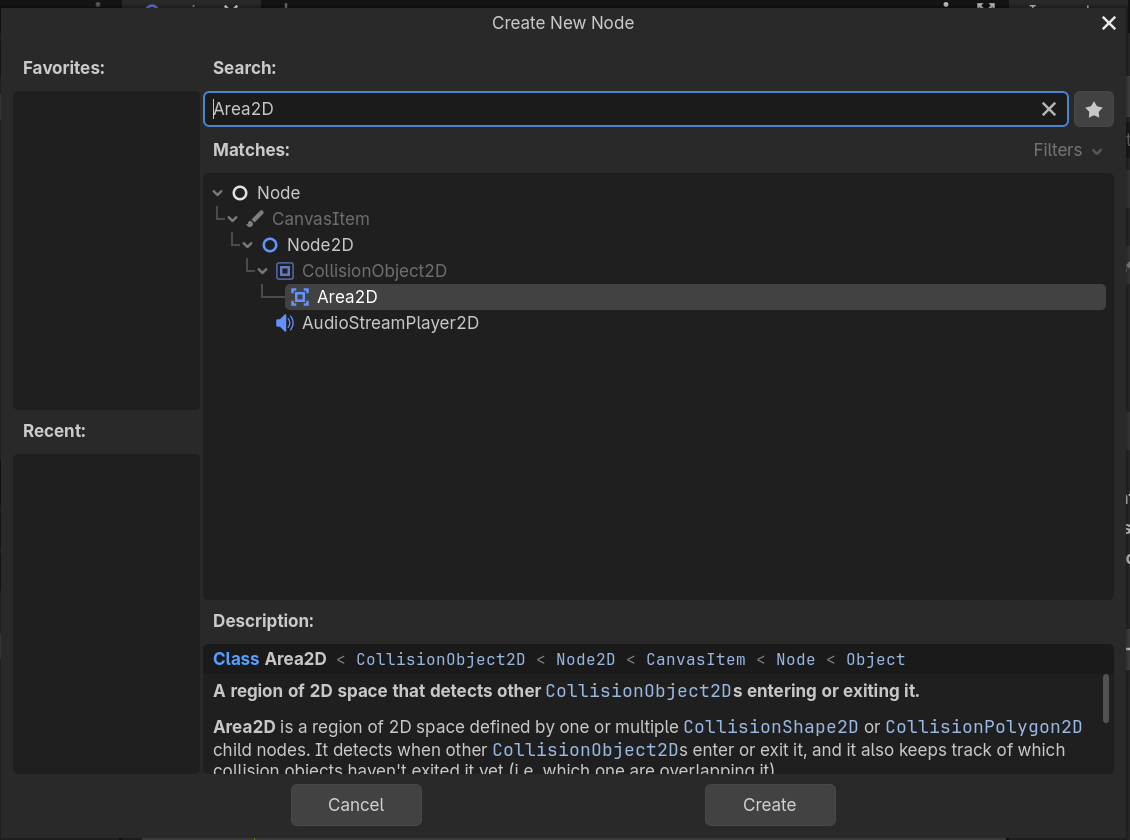
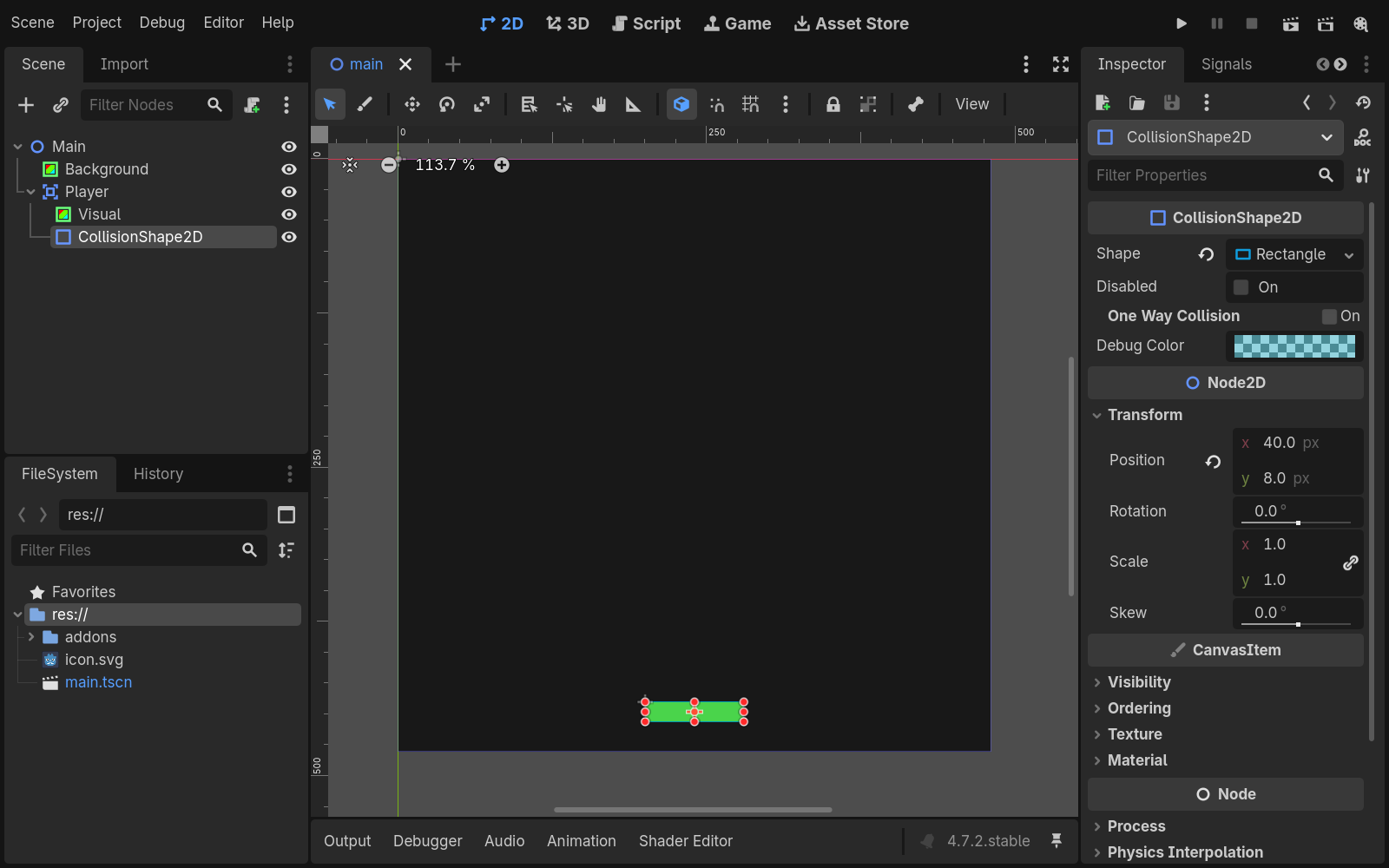
Build this tree. Rename each node by double-clicking it:
Main— Node2D, the rootBackground— ColorRect. In the Inspector set Layout → Transform → Size to 480 × 480 and set its Color to181818, almost black.Player— Area2D, at Transform → Position x 200, y 440Visual— ColorRect, size 80 × 16, Color7fff00(bright green)CollisionShape2D— CollisionShape2D
The CollisionShape2D is the invisible outline the Player uses to notice when something touches it. In the Inspector, click Shape → <empty> and choose New RectangleShape2D. Click the new shape and set its Size to 80 × 16. Set the CollisionShape2D's Position to x 40, y 8, so it sits right on top of the green rectangle:
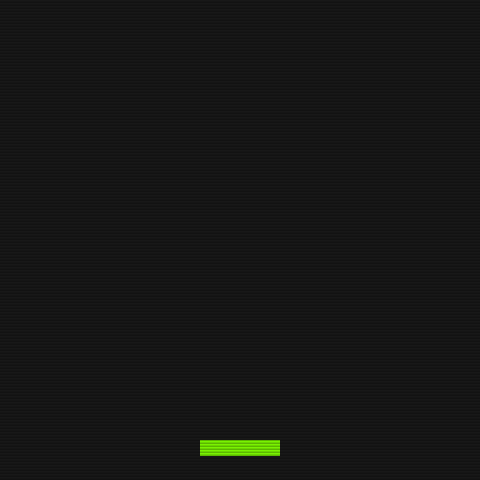
Save the scene with Ctrl+S as main.tscn. Press
F5 to run the game. The first time, Godot asks which scene to
start with; choose Select Current.
Step 3 — Make the player move
Behaviour lives in scripts. Select Player, click
the scroll icon with a green plus at the top of the Scene dock (Attach a new
script) and press Create. That makes
player.gd and opens the script editor. Replace what's there with:
player.gd
extends Area2D

# How fast the player moves, in pixels per second.
@export var speed := 360.0


func _process(delta):
	# -1 while left is held, 1 while right is held, 0 otherwise
	var direction := Input.get_axis("ui_left", "ui_right")
	position.x += direction * speed * delta

	# never off the edge of the screen (480 wide, the player is 80)
	position.x = clamp(position.x, 0, 480 - 80)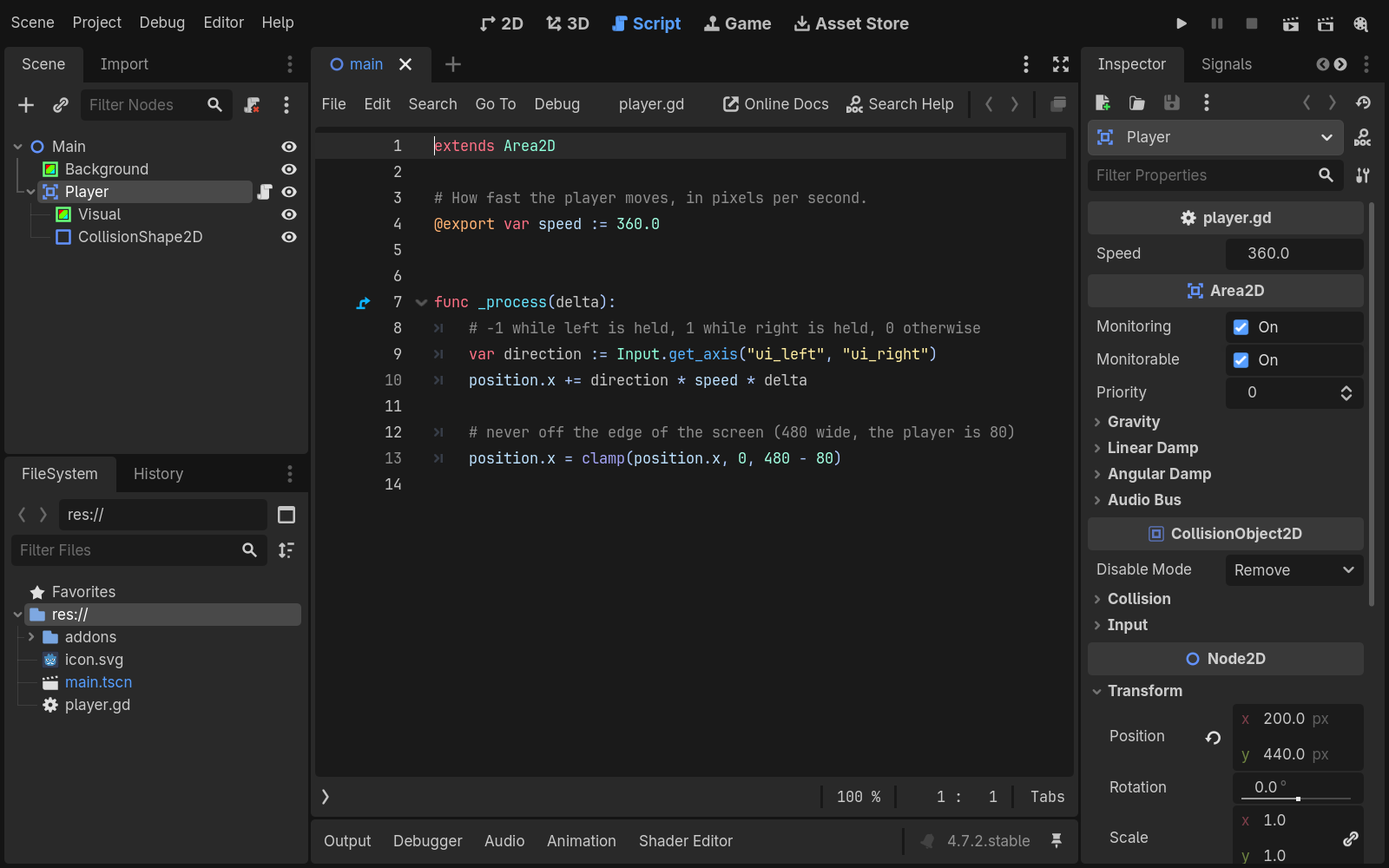
What's going on:
extends Area2D: this script adds behaviour to an Area2D._process(delta)is Godot's game loop: Godot calls it every frame, about 60 times a second.deltais the time since the last frame, in seconds. Multiplying by it makes the speed "pixels per second", the same on a fast computer and a slow one.Input.get_axis("ui_left", "ui_right")is -1, 0 or 1, depending on which arrow key is held.ui_leftandui_rightcome built in.clampkeeps x between 0 and 400, so the player never leaves the screen.@exportmakesspeedshow up in the Inspector, so you can tune it there without touching the code.
GDScript cares about indentation: the lines inside
_process must be indented with a Tab. The editor does that for
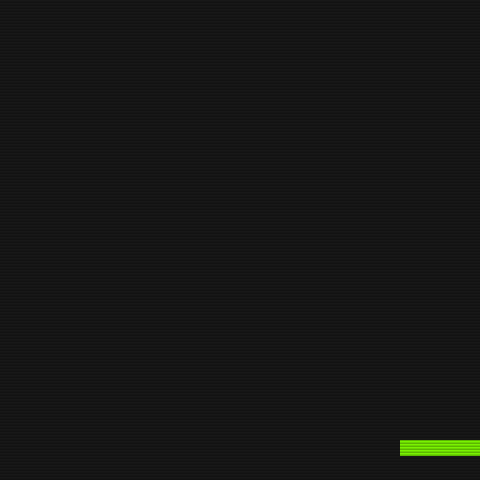
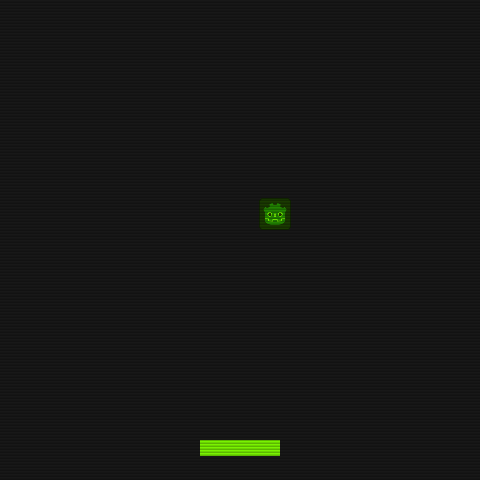
you. Press F5 and use the arrow keys:
Step 4 — Drop the logo
Select Main and add another Area2D called
Apple, with two children:
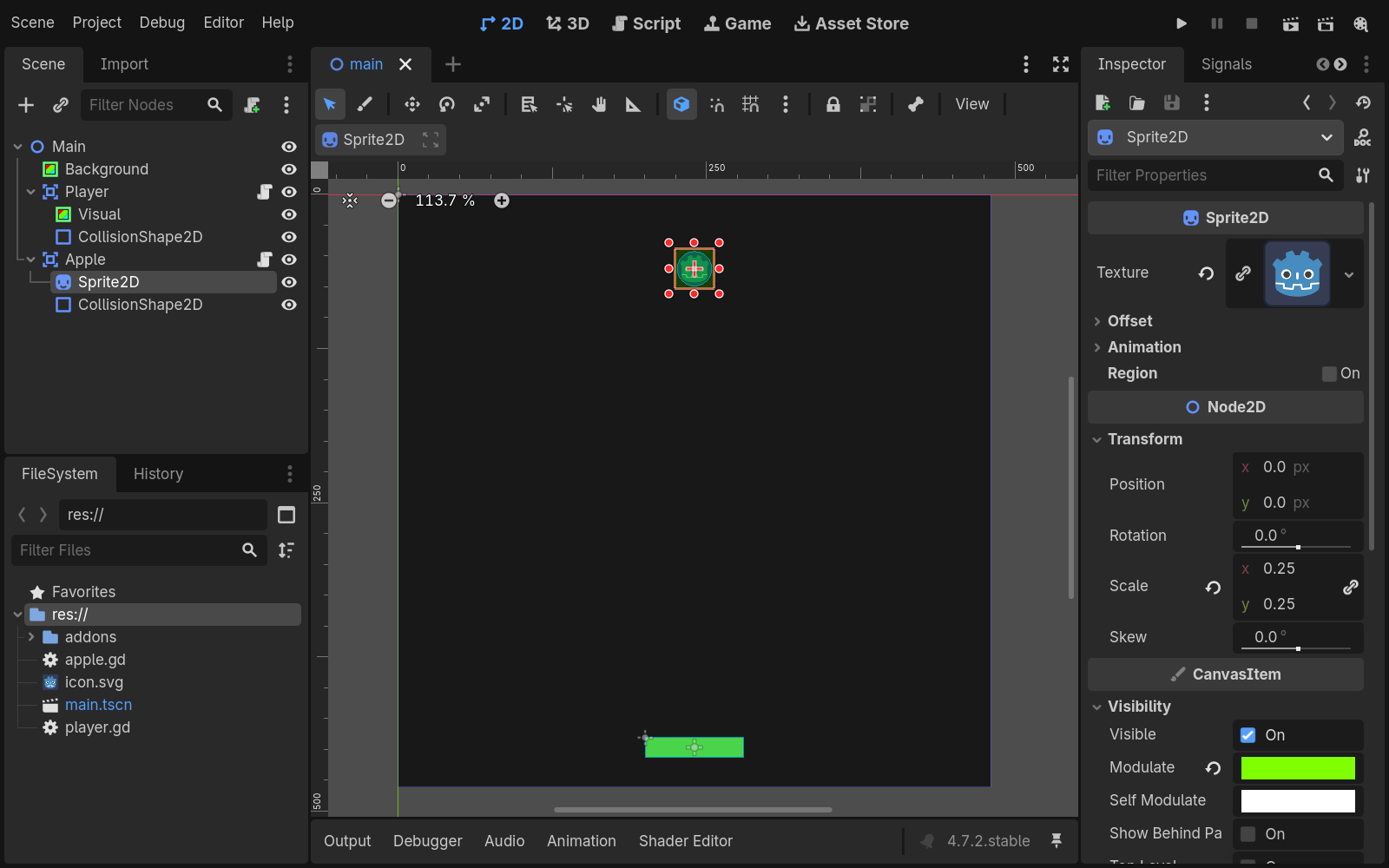
Sprite2D. Dragicon.svgfrom the FileSystem dock onto its Texture, and set Transform → Scale to 0.25 so it's 32 pixels across. To make it glow green like the paddle, set Visibility → Modulate to7fff00.CollisionShape2D, with a New CircleShape2D of radius 14.
Attach a script to Apple:
apple.gd
extends Area2D

# How fast the apple falls, in pixels per second.
@export var speed := 180.0


func _ready():
	reset()


func _process(delta):
	position.y += speed * delta

	# fell off the bottom? start again at the top
	if position.y > 480 + 20:
		reset()


# Back to the top, somewhere random across the width.
func reset():
	position = Vector2(randf_range(20, 460), -20)
_ready() runs once, when the node appears, so the first logo starts
at a random spot. reset() is our own function: back to the top, at a
random x. randf_range(20, 460) is a random number between 20 and
460.
Like the canvas in the web version, Godot's 2D (0, 0) is the top-left
corner and y grows downwards. That's why falling is
position.y +=.
Step 5 — Catch it and keep score
First, somewhere to show the score. Select Main and add a
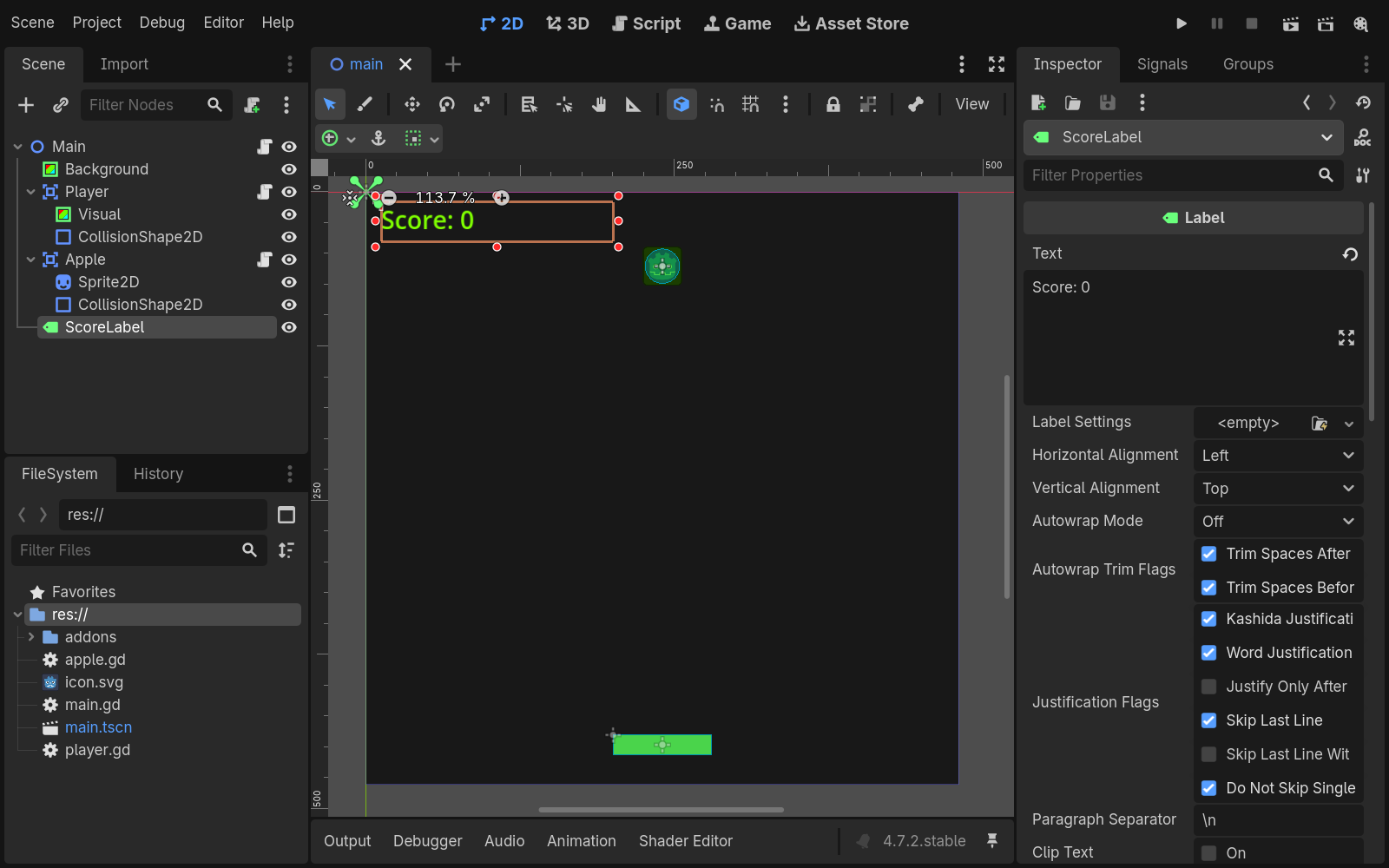
Label called ScoreLabel. Set its Text to
Score: 0 and its Position to 12, 8. For bigger text, use
Theme Overrides → Font Sizes → Font Size 20, and for green
text Theme Overrides → Colors → Font Color
7fff00.
Now the catching. Two Area2Ds touching is something Godot notices for you: it
sends a signal. A signal is a message: "this just happened". Any
code that wants to know can connect to it. Update
apple.gd; the bright lines are new:
apple.gd
extends Area2D

# Tells anyone who is listening that the apple was caught.
signal caught

# How fast the apple falls, in pixels per second.
@export var speed := 180.0


func _ready():
	# call _on_area_entered whenever another Area2D touches the apple
	area_entered.connect(_on_area_entered)
	reset()


func _on_area_entered(_area):
	caught.emit()
	reset()


func _process(delta):
	position.y += speed * delta

	# fell off the bottom? start again at the top
	if position.y > 480 + 20:
		reset()


# Back to the top, somewhere random across the width.
func reset():
	position = Vector2(randf_range(20, 460), -20)
When the Player's Area2D touches the Apple, Godot emits the Apple's built-in
area_entered signal. Our function sends out our own signal,
caught, and resets. The apple doesn't know or care what a score is;
it only announces that it was caught.
The score belongs to the game as a whole, so it lives on Main. Attach a
script to Main:
main.gd
extends Node2D

var score := 0


func _ready():
	# listen for the apple's "caught" signal
	$Apple.caught.connect(_on_apple_caught)


func _on_apple_caught():
	score += 1
	$ScoreLabel.text = "Score: %d" % score
$Apple and $ScoreLabel find the child nodes by name.
"Score: %d" % score puts the number into the text.
Remember the Observer pattern from the last
workshop? This is it. The apple is the subject, Main subscribes with
connect, and emit notifies everyone on the list. Signals
are Godot's built-in Observer.
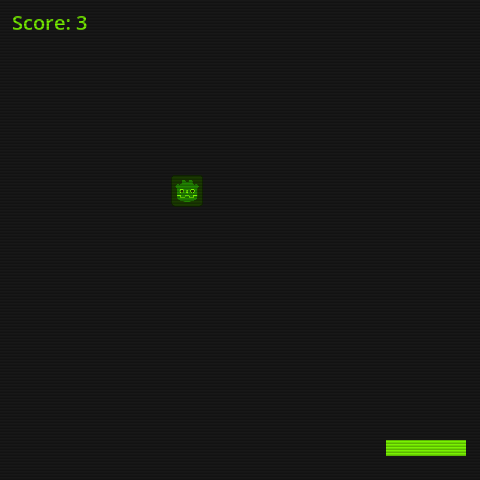
F5, and catch a few:
catch-step-5.zip — the finished game
Look at what you built: an action (move), feedback (the logo jumps away), a reward (the score) and a repeat (a new logo). That's the core loop from the last workshop.
Make it your own
Faster and faster
In apple.gd, inside _on_area_entered, add
speed += 20.
A sound
Add an AudioStreamPlayer child to Main called Pop,
drag a sound file onto its Stream, and call $Pop.play() in
_on_apple_caught.
Three lives
Give the apple a second signal, missed, emitted when it falls off the
bottom. Count lives in main.gd, and at zero, show "GAME OVER" in the
label and call get_tree().paused = true.
A bad apple
Duplicate the Apple (Ctrl+D), tint it red with Visibility → Modulate, and make catching it take a point away.
Share it
Project → Export, add a Web preset, and Godot builds a version that runs in a browser. The first time, it offers to download the export templates it needs.
When it doesn't work
- Read the Output panel. At the bottom of the editor, errors show up in red with the script and line number.
- Names must match exactly.
$ScoreLabelonly works if the node is calledScoreLabel, with the same capitals. - Indentation matters. Everything inside a function is indented
one Tab further than the
funcline. - Catching does nothing? Both the Player and the Apple need a CollisionShape2D with a shape in it. A yellow warning triangle next to a node in the Scene dock tells you something is missing.
- The script is on the wrong node? The scroll icon in the Scene dock shows which node a script belongs to.
Same game, other tools: Scratch (blocks, no typing) and HTML, CSS & JavaScript (from three empty files).