$ cat catch-with-html-css-js.md
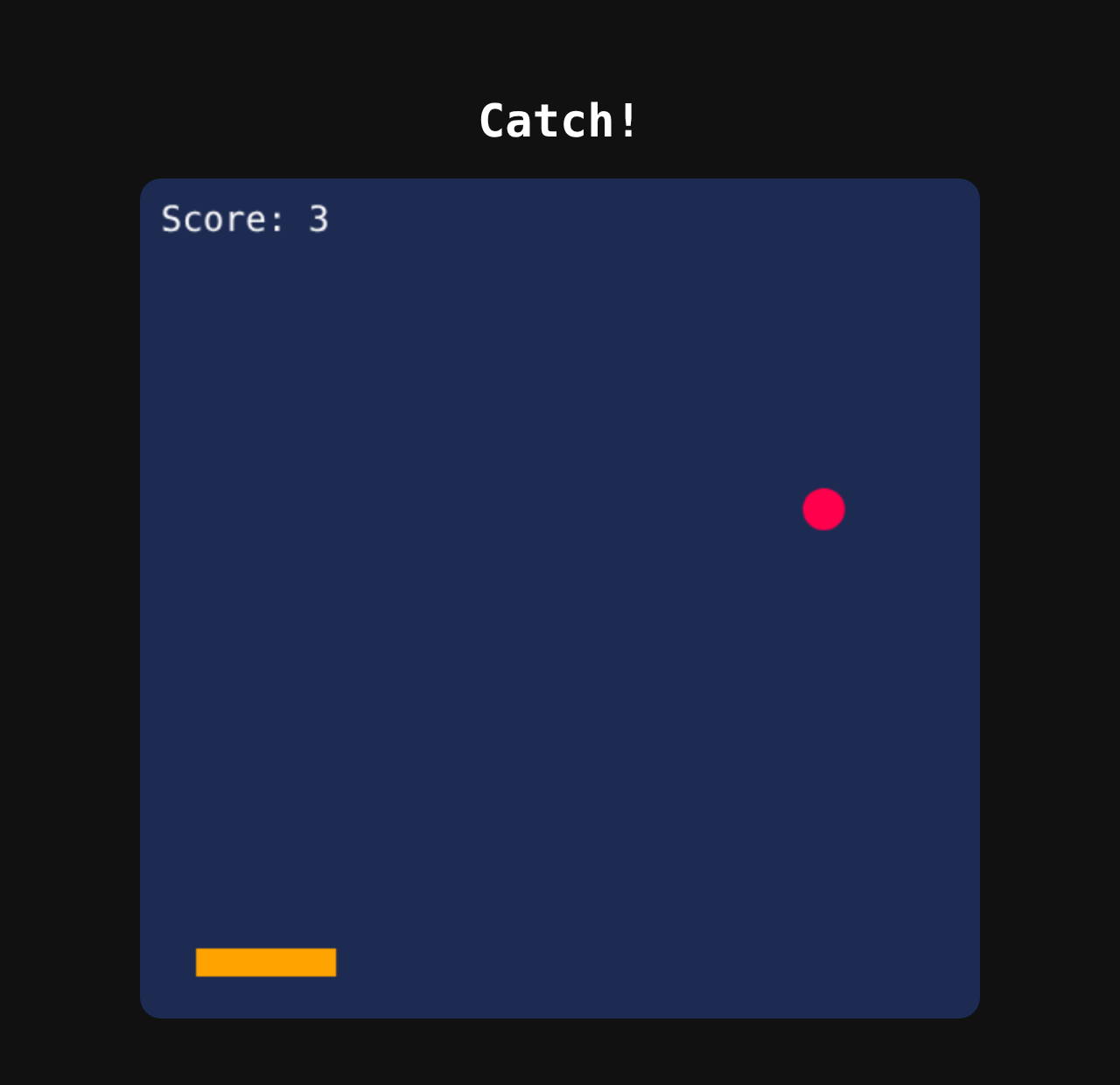
In this tutorial you build a small game from three empty text files: a paddle you move with the arrow keys, an apple falling from the sky, and a score that goes up every time you catch it. It's the same game as the Scratch and Godot tutorials, so you can compare how each tool thinks.
You need: a text editor (VS Code is a good free one) and a web browser. Nothing to install, nothing to sign up for. It takes about 45 minutes.
Stuck at any point? Every step below has a run this step link to a working copy, and a link to its files. Open them side by side with yours and look for the difference.
Step 1 — Make the files
Make a new folder called catch. Inside it, make three empty
files:
index.html— what is on the pagestyle.css— how it looksgame.js— what it does
Every web page splits the work this way. Open index.html and type
this in:
index.html
<!DOCTYPE html>
<html lang="en">
<head>
  <meta charset="UTF-8">
  <title>Catch!</title>
  <link rel="stylesheet" href="style.css">
</head>
<body>
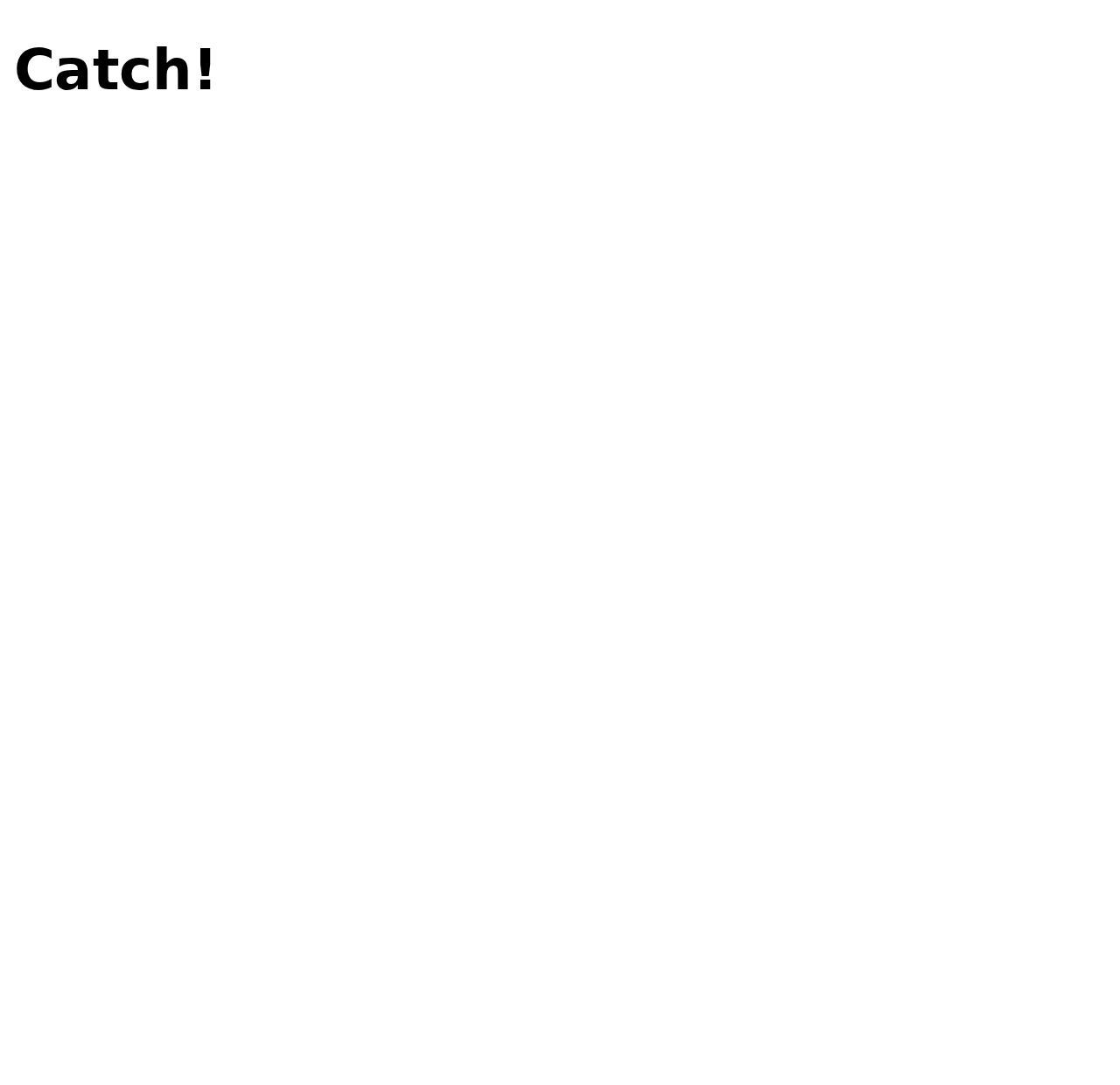
  <h1>Catch!</h1>
  <canvas id="game" width="480" height="480"></canvas>
  <script src="game.js"></script>
</body>
</html>
Line by line: the <head> holds things about the page —
its title in the browser tab, and a link to the stylesheet. The
<body> is what you see: a heading, and a
<canvas>, a 480 by 480 pixel rectangle we will draw the game
on. The <script> at the very end loads the game code
after the canvas exists, so the code can find it.
Save, then double-click index.html to open it in your browser.
Step 2 — Give it some style
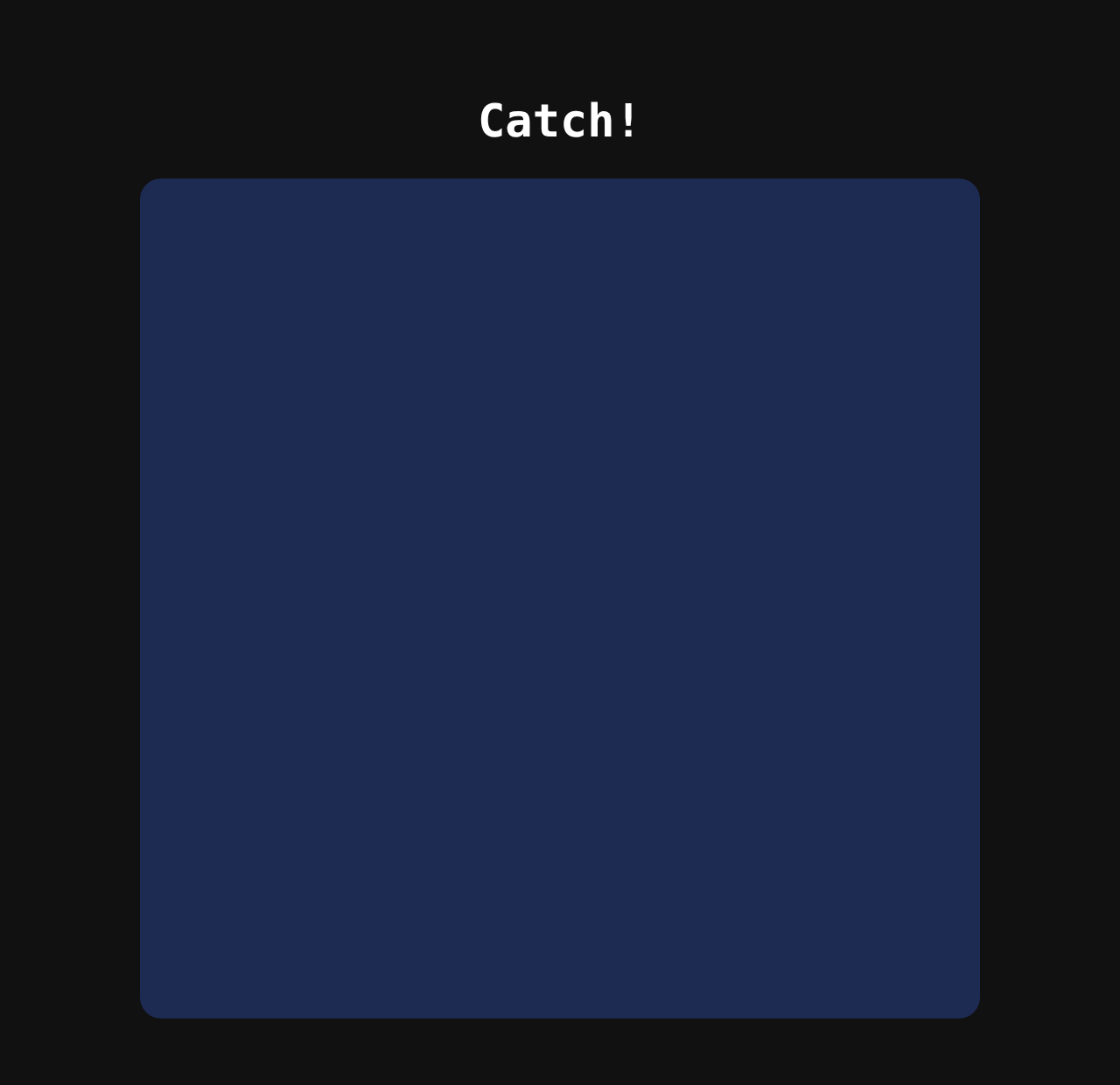
Open style.css. We make the page dark, put everything in the
middle, and give the canvas a colour so we can see it:
style.css
body {
  margin: 0;
  min-height: 100vh;
  display: flex;
  flex-direction: column;
  align-items: center;
  justify-content: center;
  background: #111;
  color: white;
  font-family: monospace;
}

canvas {
  background: #1d2b53;
  border-radius: 12px;
}
A CSS rule is a selector (which things) and, between the braces,
properties (what to change). display: flex with
align-items and justify-content is the usual way to
centre things. Save and reload the browser.
Step 3 — Draw the player
Time for JavaScript. Open game.js:
game.js
// Find the canvas on the page, and get the "pen" we draw with.
const canvas = document.getElementById("game");
const ctx = canvas.getContext("2d");

// The player: where it is and how big it is.
const player = { x: 200, y: 440, width: 80, height: 16 };

// Draw the player once, as an orange rectangle.
ctx.fillStyle = "#ffa300";
ctx.fillRect(player.x, player.y, player.width, player.height);
The first two lines find the canvas and get its context — think of
it as the pen we draw with. Then we describe the player as an
object: a bundle of named values, x, y,
width and height. (Remember the class diagrams from
the last workshop? This is a Player with four attributes.)
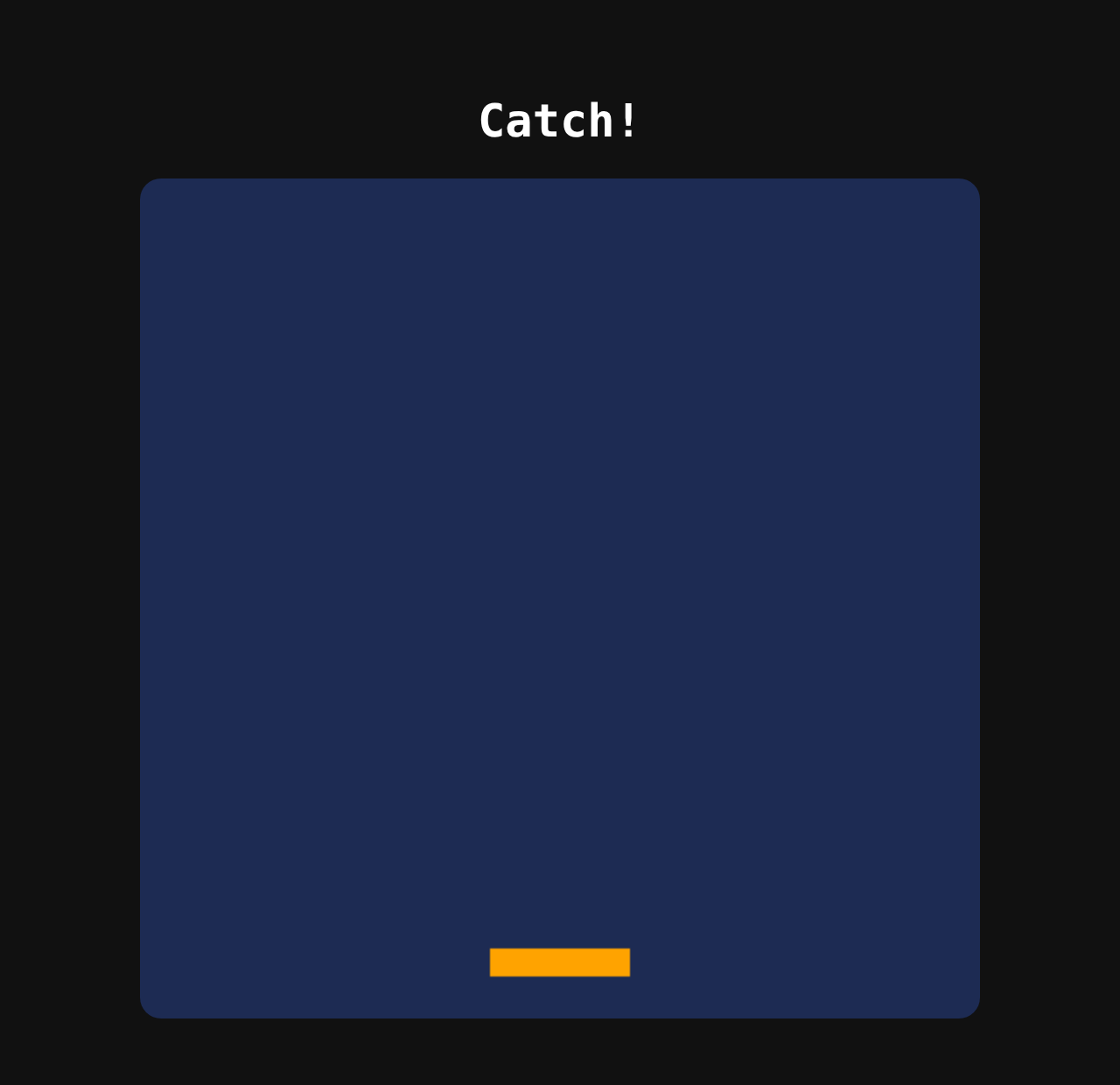
So x: 200, y: 440 means 200 pixels from the left and 440 down: near
the bottom, roughly in the middle. Reload:
x, y or width and reloading.Step 4 — The game loop
A picture that never changes isn't a game. Every game runs the same cycle, over and over, many times a second:
- update — move things a tiny bit, check what happened
- draw — wipe the screen and paint everything where it is now
- repeat
Replace everything in game.js with this. The bright lines are new;
the drawing code from step 3 has moved inside draw():
game.js
// Find the canvas on the page, and get the "pen" we draw with.
const canvas = document.getElementById("game");
const ctx = canvas.getContext("2d");

// ----- game state -----
const player = { x: 200, y: 440, width: 80, height: 16 };
const apple = { x: 240, y: 0, radius: 12, speed: 3 };

// ----- update: change the game state a tiny bit -----
function update() {
  apple.y += apple.speed;
}

// ----- draw: wipe the canvas and paint everything where it is now -----
function draw() {
  ctx.clearRect(0, 0, canvas.width, canvas.height);

  ctx.fillStyle = "#ffa300";
  ctx.fillRect(player.x, player.y, player.width, player.height);

  ctx.fillStyle = "#ff004d";
  ctx.beginPath();
  ctx.arc(apple.x, apple.y, apple.radius, 0, Math.PI * 2);
  ctx.fill();
}

// ----- the game loop: update, draw, repeat - about 60 times a second -----
function loop() {
  update();
  draw();
  requestAnimationFrame(loop);
}

loop();
requestAnimationFrame(loop) asks the browser: "next time you draw the
screen, call loop again". That's about 60 times a second. Each
time, update() moves the apple 3 pixels down, and
draw() paints the new picture. 60 slightly different pictures a
second looks like movement — the same trick as a flip book.
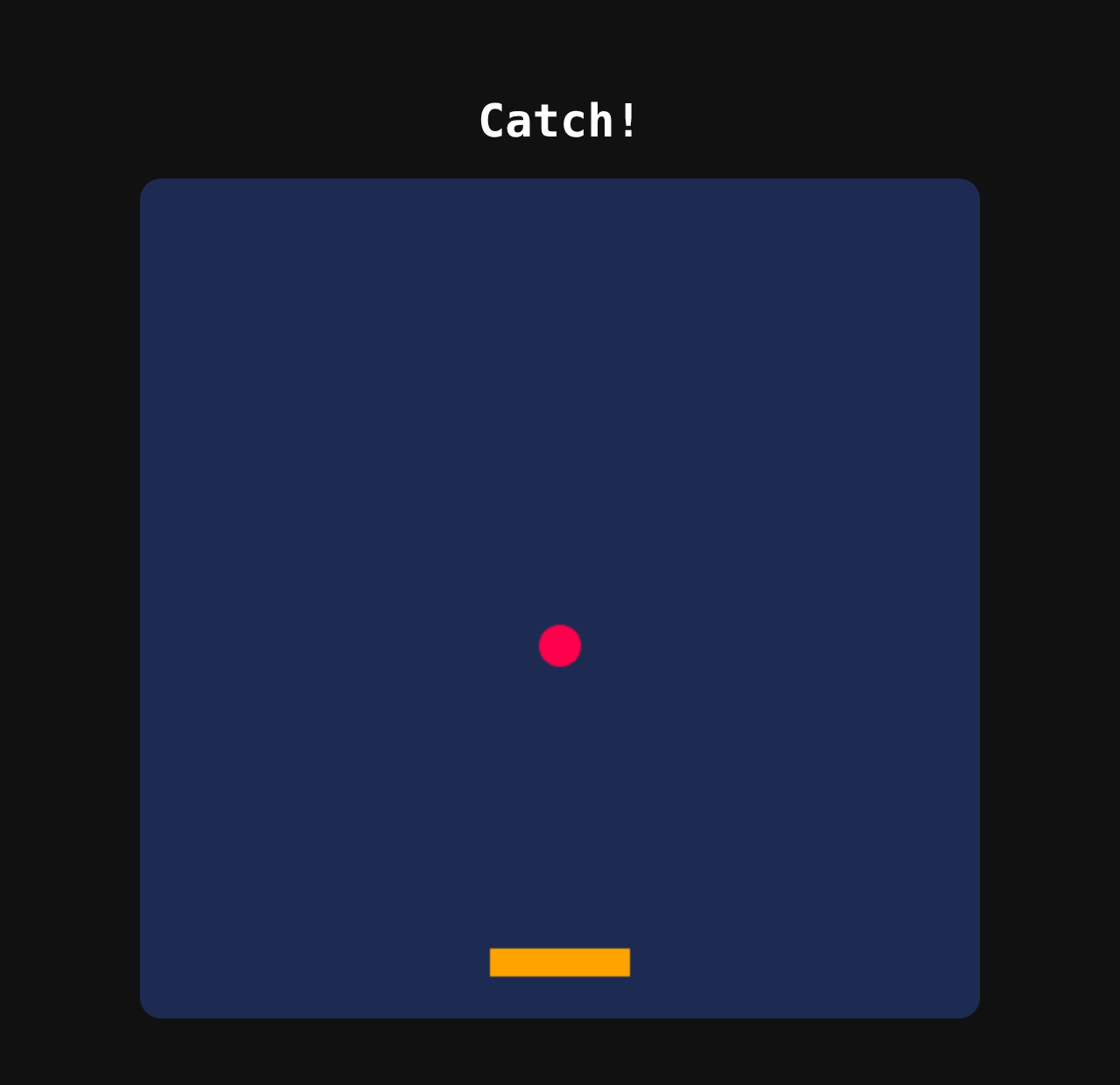
Try this: delete the ctx.clearRect
line and reload. Without the wipe, every old picture stays behind and the apple
paints a red streak. Put it back.
Step 5 — Again, and again
When the apple leaves the bottom, put it back at the top, somewhere random:
game.js
// Find the canvas on the page, and get the "pen" we draw with.
const canvas = document.getElementById("game");
const ctx = canvas.getContext("2d");

// ----- game state -----
const player = { x: 200, y: 440, width: 80, height: 16 };
const apple = { x: 240, y: 0, radius: 12, speed: 3 };

// Put the apple back at the top, somewhere random across the width.
function resetApple() {
  apple.x = apple.radius + Math.random() * (canvas.width - apple.radius * 2);
  apple.y = -apple.radius;
}

// ----- update: change the game state a tiny bit -----
function update() {
  apple.y += apple.speed;

  // fell off the bottom? start again at the top
  if (apple.y - apple.radius > canvas.height) {
    resetApple();
  }
}

// ----- draw: wipe the canvas and paint everything where it is now -----
function draw() {
  ctx.clearRect(0, 0, canvas.width, canvas.height);

  ctx.fillStyle = "#ffa300";
  ctx.fillRect(player.x, player.y, player.width, player.height);

  ctx.fillStyle = "#ff004d";
  ctx.beginPath();
  ctx.arc(apple.x, apple.y, apple.radius, 0, Math.PI * 2);
  ctx.fill();
}

// ----- the game loop: update, draw, repeat - about 60 times a second -----
function loop() {
  update();
  draw();
  requestAnimationFrame(loop);
}

loop();
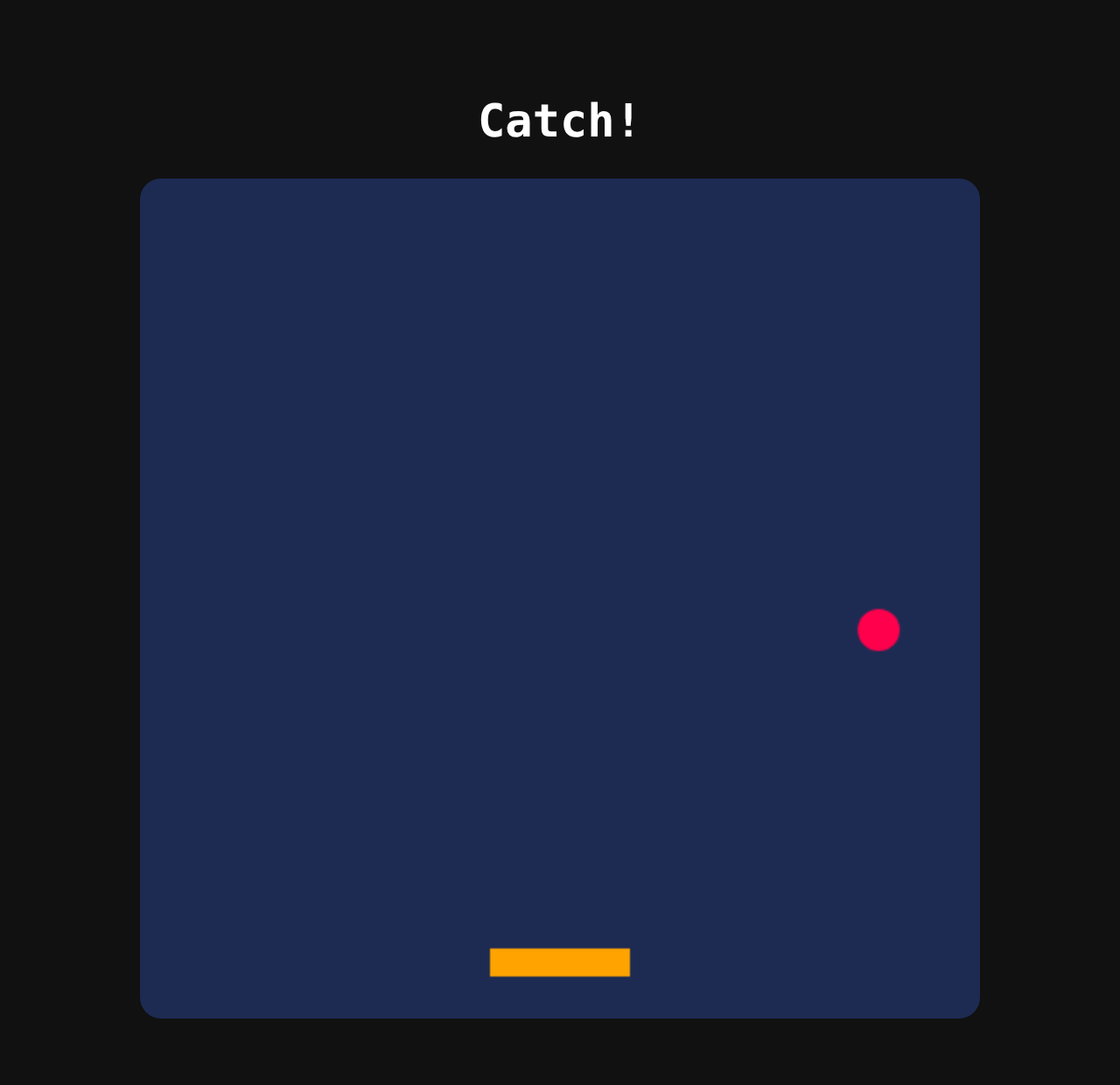
Math.random() gives a number between 0 and 1. Multiplied by the
width of the canvas (minus the apple on both sides) it becomes a random spot
across the top. We start the apple one radius above the canvas, so it
slides in instead of popping into view.
Step 6 — Take control
Now the arrow keys. Add the speed to the player, the key tracking,
and the movement at the top of update():
game.js
// Find the canvas on the page, and get the "pen" we draw with.
const canvas = document.getElementById("game");
const ctx = canvas.getContext("2d");

// ----- game state -----
const player = { x: 200, y: 440, width: 80, height: 16, speed: 6 };
const apple = { x: 240, y: 0, radius: 12, speed: 3 };

// ----- input: remember which keys are held down right now -----
const keys = {};
document.addEventListener("keydown", (event) => { keys[event.key] = true; });
document.addEventListener("keyup", (event) => { keys[event.key] = false; });

// Put the apple back at the top, somewhere random across the width.
function resetApple() {
  apple.x = apple.radius + Math.random() * (canvas.width - apple.radius * 2);
  apple.y = -apple.radius;
}

// ----- update: change the game state a tiny bit -----
function update() {
  // move the player while an arrow key is held
  if (keys["ArrowLeft"]) player.x -= player.speed;
  if (keys["ArrowRight"]) player.x += player.speed;

  // ...but never off the edge of the canvas
  player.x = Math.max(0, Math.min(canvas.width - player.width, player.x));

  apple.y += apple.speed;

  // fell off the bottom? start again at the top
  if (apple.y - apple.radius > canvas.height) {
    resetApple();
  }
}

// ----- draw: wipe the canvas and paint everything where it is now -----
function draw() {
  ctx.clearRect(0, 0, canvas.width, canvas.height);

  ctx.fillStyle = "#ffa300";
  ctx.fillRect(player.x, player.y, player.width, player.height);

  ctx.fillStyle = "#ff004d";
  ctx.beginPath();
  ctx.arc(apple.x, apple.y, apple.radius, 0, Math.PI * 2);
  ctx.fill();
}

// ----- the game loop: update, draw, repeat - about 60 times a second -----
function loop() {
  update();
  draw();
  requestAnimationFrame(loop);
}

loop();
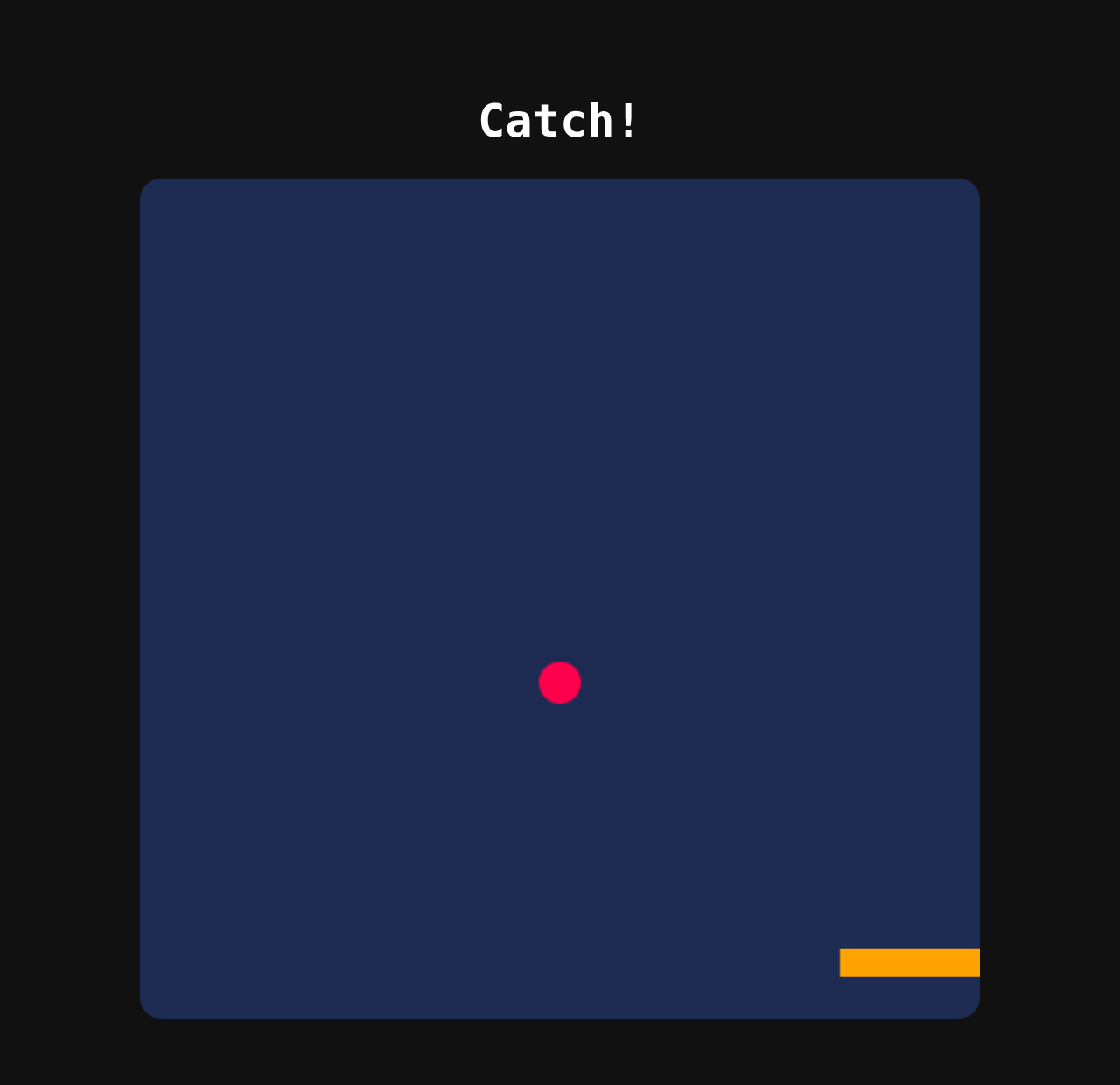
The browser tells us when a key goes down and when it comes back
up. We write that into keys, so at any moment
keys["ArrowLeft"] is true while the left arrow is held.
Then every frame, update() checks it and moves the player. Checking
every frame is what makes the movement smooth — it's exactly what Scratch's
if key pressed inside a forever does.
The Math.max / Math.min line keeps the player on the
canvas: never less than 0, never more than the canvas width minus its own
width.
Step 7 — Catch it
Last step: notice when the apple lands on the paddle, and keep score.
game.js
// Find the canvas on the page, and get the "pen" we draw with.
const canvas = document.getElementById("game");
const ctx = canvas.getContext("2d");

// ----- game state -----
const player = { x: 200, y: 440, width: 80, height: 16, speed: 6 };
const apple = { x: 240, y: 0, radius: 12, speed: 3 };
let score = 0;

// ----- input: remember which keys are held down right now -----
const keys = {};
document.addEventListener("keydown", (event) => { keys[event.key] = true; });
document.addEventListener("keyup", (event) => { keys[event.key] = false; });

// Put the apple back at the top, somewhere random across the width.
function resetApple() {
  apple.x = apple.radius + Math.random() * (canvas.width - apple.radius * 2);
  apple.y = -apple.radius;
}

// ----- update: change the game state a tiny bit -----
function update() {
  // move the player while an arrow key is held
  if (keys["ArrowLeft"]) player.x -= player.speed;
  if (keys["ArrowRight"]) player.x += player.speed;

  // ...but never off the edge of the canvas
  player.x = Math.max(0, Math.min(canvas.width - player.width, player.x));

  apple.y += apple.speed;

  // Caught? The apple's bottom has reached the player's top, it hasn't
  // passed the player's bottom yet, and it is between the player's ends.
  const caught =
    apple.y + apple.radius >= player.y &&
    apple.y - apple.radius <= player.y + player.height &&
    apple.x >= player.x &&
    apple.x <= player.x + player.width;

  if (caught) {
    score += 1;
    resetApple();
  }

  // fell off the bottom? start again at the top
  if (apple.y - apple.radius > canvas.height) {
    resetApple();
  }
}

// ----- draw: wipe the canvas and paint everything where it is now -----
function draw() {
  ctx.clearRect(0, 0, canvas.width, canvas.height);

  ctx.fillStyle = "#ffa300";
  ctx.fillRect(player.x, player.y, player.width, player.height);

  ctx.fillStyle = "#ff004d";
  ctx.beginPath();
  ctx.arc(apple.x, apple.y, apple.radius, 0, Math.PI * 2);
  ctx.fill();

  ctx.fillStyle = "white";
  ctx.font = "20px monospace";
  ctx.fillText("Score: " + score, 12, 30);
}

// ----- the game loop: update, draw, repeat - about 60 times a second -----
function loop() {
  update();
  draw();
  requestAnimationFrame(loop);
}

loop();
This is collision detection: checking whether two things
overlap. && means and — all four checks have
to be true at once:
If it's a catch, the score goes up and the apple goes back to the top. The score is drawn last, so it sits on top of everything else.
▶ play the finished gameindex.htmlstyle.cssgame.js
Look at what you built: an action (move), feedback (the apple disappears), a reward (the score) and a repeat (a new apple). That's the core loop from the last workshop, in 70 lines.
Make it your own
Pick one or more. Each one is a few lines, and each one changes how the game feels.
Faster and faster
Make every catch a bit harder: inside the if (caught) block, add
apple.speed += 0.3;Three lives
Add let lives = 3; next to score. When the apple falls off
the bottom, take one away. At zero, stop the game — wrap everything in
update() in if (lives > 0) { … } and draw
"GAME OVER" in draw().
A bad apple
Add a second object that costs a point when you catch it. Copy the apple: a
badApple object, its own reset, its own catch check, drawn in a
different colour.
Sound
Put a sound file next to your code and play it on a catch:
const pop = new Audio("pop.mp3");   // at the top
pop.play();                          // inside if (caught)
Remember the best score
The browser can store a value that survives a reload:
localStorage.setItem("best", score) to save it and
localStorage.getItem("best") to read it back.
When it doesn't work
- Open the console. Press F12 (or right-click → Inspect) and look at the Console tab. A typo shows up there in red, with the file and line number.
- Capitals matter.
arrowLeftis notArrowLeft, andGame.jsis notgame.js. - Brackets come in pairs. Every
{needs a}, every(a). Your editor highlights the partner when you click next to one. - Nothing happens when I press the keys? Click on the page first, so it has the keyboard.
- Compare with the step that works. Open that step's run this step link and its files, and go line by line.
Same game, other tools: Scratch (blocks, no typing) and Godot (a real game engine).