
$ cat catch-with-scratch.md
In this tutorial you build a small game in Scratch: a bowl you move with the arrow keys, an apple falling from the sky, and a score that goes up every time you catch it. No typing — you snap blocks together. It's the same game as the Godot and HTML, CSS & JavaScript tutorials, so you can see how each tool thinks about the same problem.
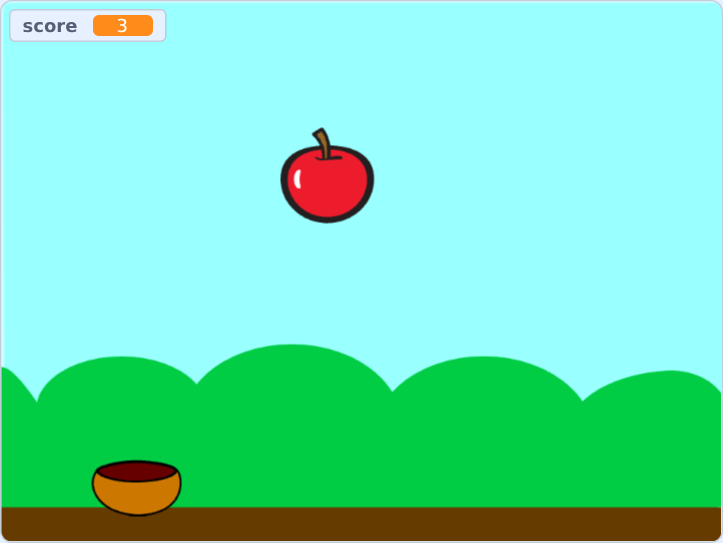
You need: a web browser. Go to scratch.mit.edu/projects/editor. You don't need an account; without one, save your work with File → Save to your computer. It takes about 40 minutes.
Stuck at any point? Every step has a project file of what it should look like. Load it with File → Load from your computer and compare.
Step 1 — Find your way around
Open the editor. It has four areas:
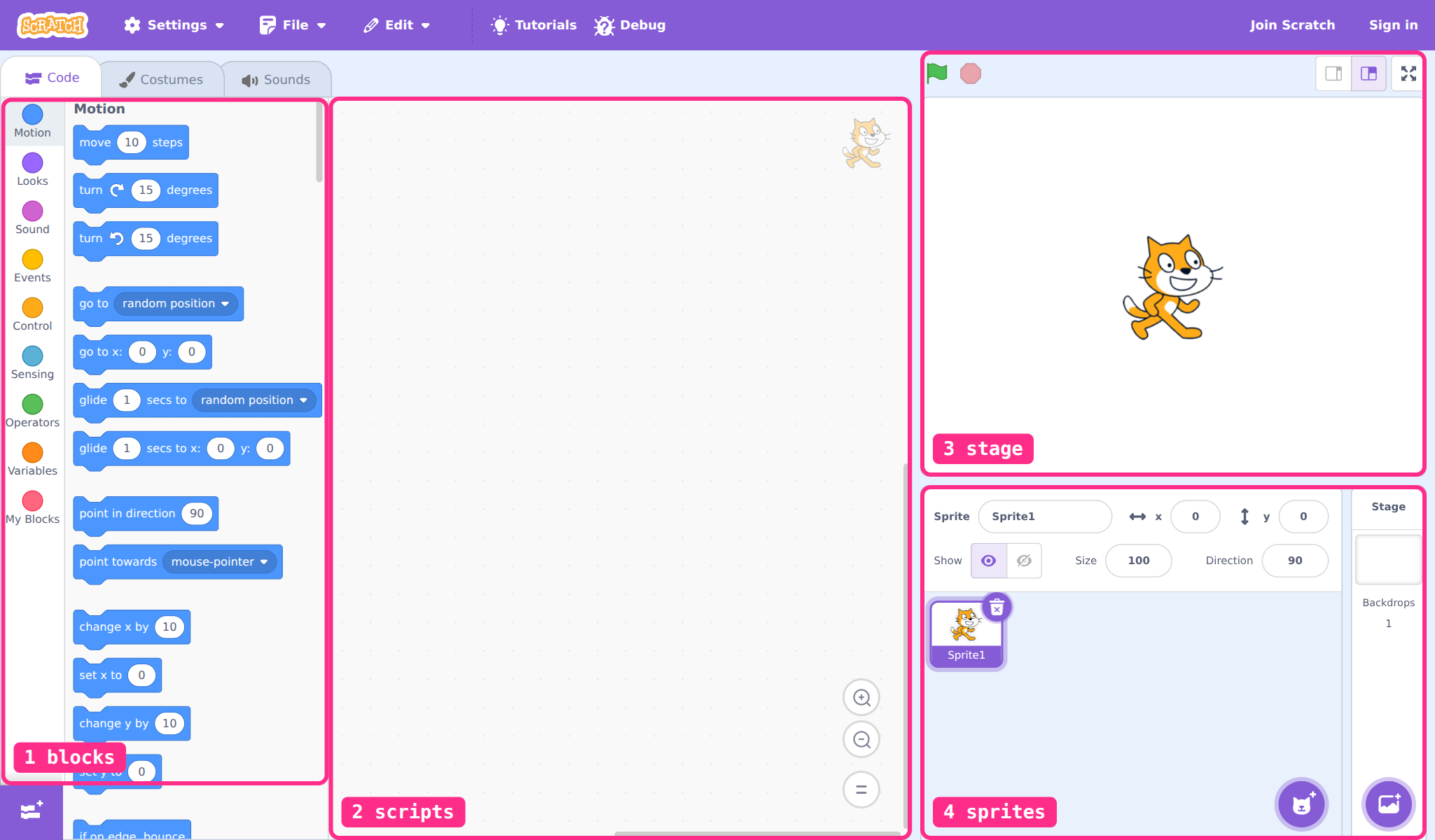
- Blocks — every block there is, sorted into coloured categories: Motion, Looks, Events, Control, Sensing… Click a category to jump to it.
- Scripts — where you drag blocks and snap them together. Each sprite has its own scripts.
- Stage — where the game runs. The green flag starts it, the red octagon stops it.
- Sprites — the characters and objects in your game. Click one to see and edit its scripts.
Step 2 — Set the scene
We don't need the cat. Click it in the sprites area and press the little bin icon on its corner.
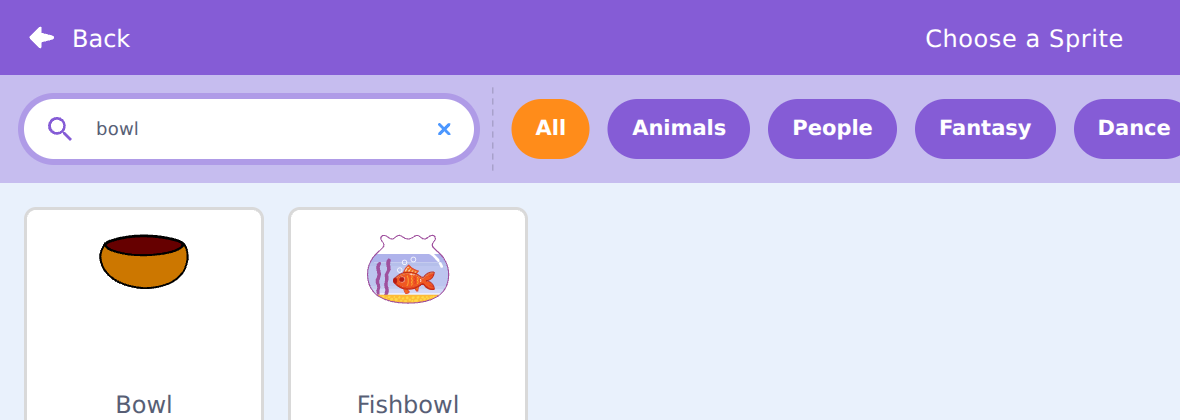
Now hover over the cat-face button at the bottom right of the sprites area and
click Choose a Sprite (the magnifying glass). Type
bowl in the search box and click Bowl:
Do the same again for an Apple. Then pick a background: the
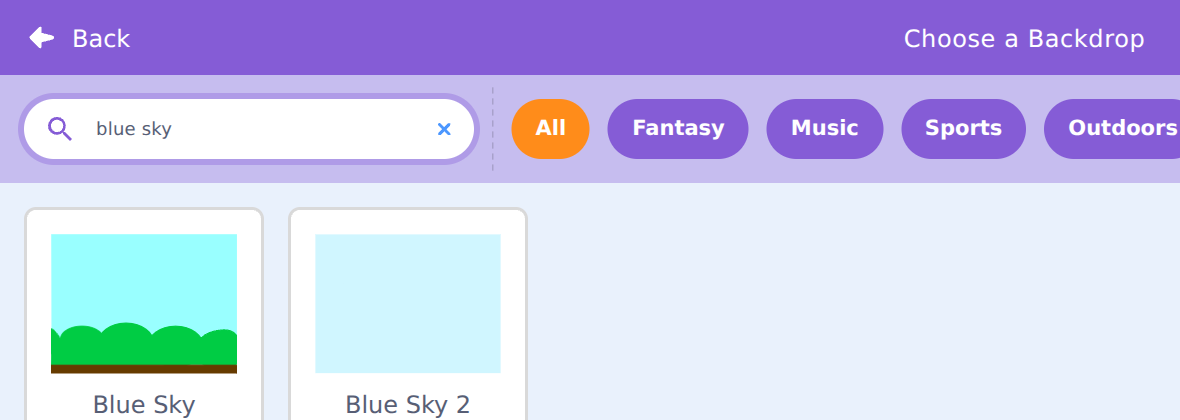
button at the bottom right of the Stage panel is
Choose a Backdrop. Search for blue sky:
Finally, drag the bowl on the stage down near the bottom, and the apple up near the top. You should have this:
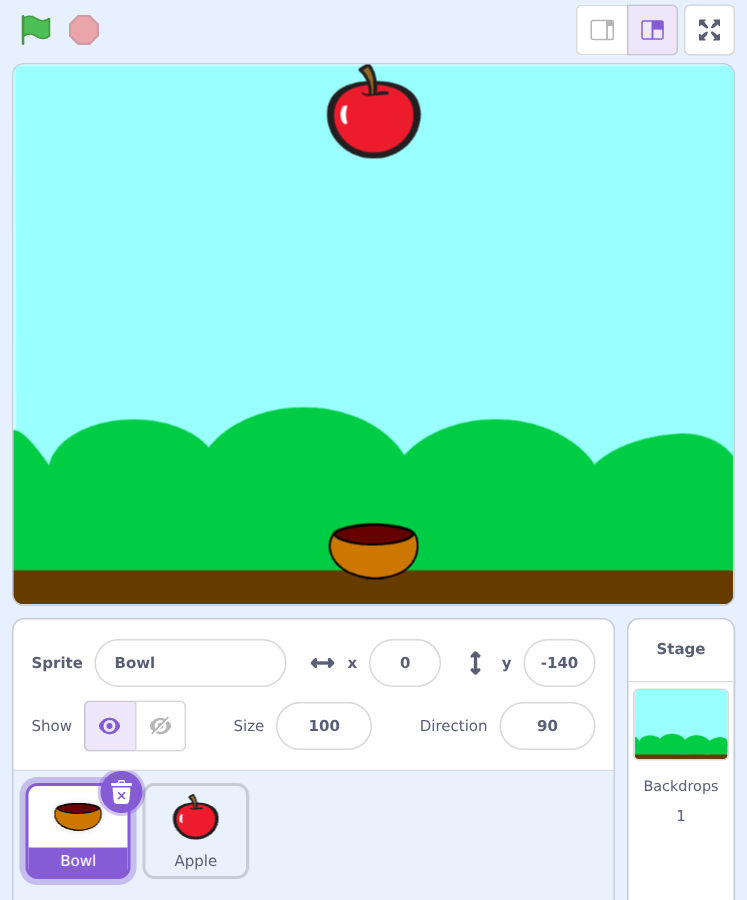
Step 3 — Move the bowl
Click the Bowl in the sprites area, so we're building the bowl's script. Build this, dragging each block from its category into the scripts area:
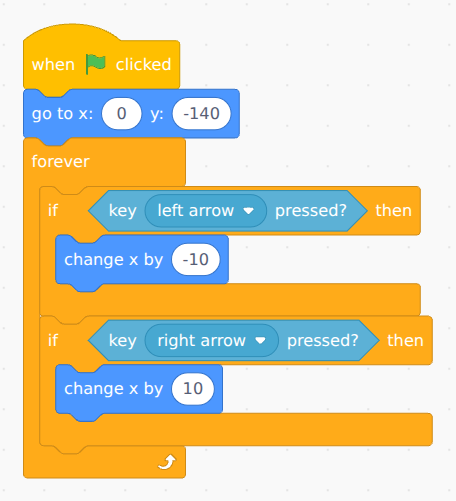
Where to find each block:
- when green flag clicked — Events
- go to x: y: and change x by — Motion
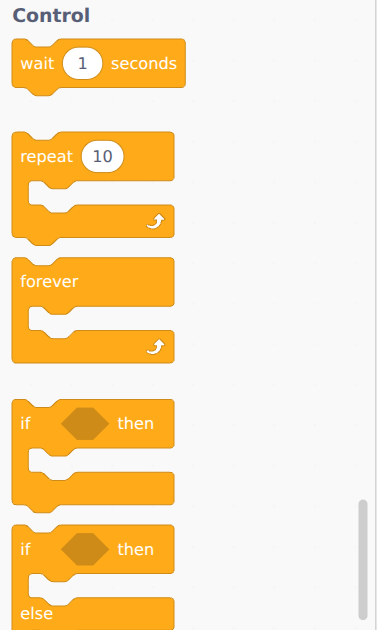
- forever and if < > then — Control
- key space pressed? — Sensing (click the little arrow to change space to left arrow)
Read it from top to bottom: when the game starts, put the bowl at the bottom middle. Then, forever: if the left arrow is held, move left a bit; if the right arrow is held, move right a bit.
That forever is the game loop. Scratch runs everything inside it again and again, about 30 times a second, so the bowl moves smoothly for as long as you hold the key.
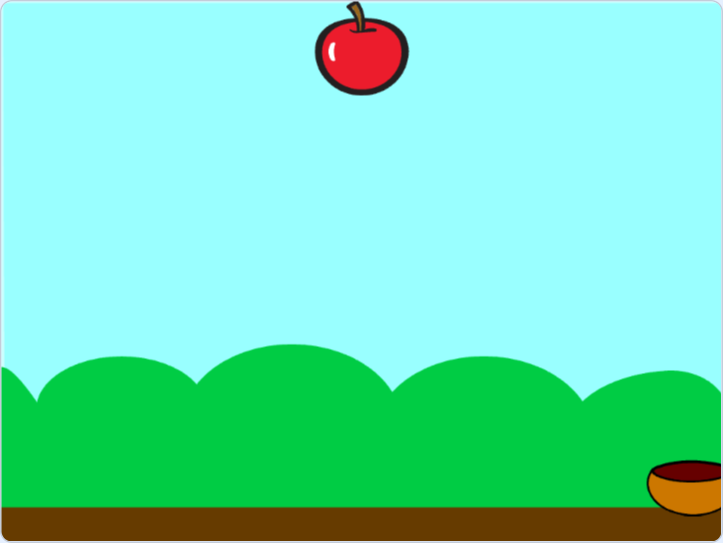
Click the green flag, then hold the arrow keys:
Step 4 — Drop the apple
Click the Apple in the sprites area and build its script:
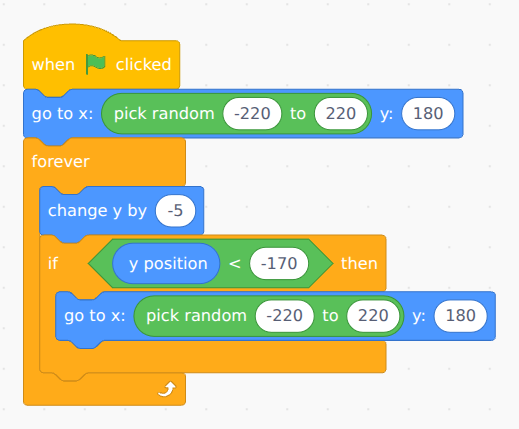
- pick random and the < block — Operators (the green ones). They fit inside other blocks.
- change y by and y position — Motion (y position is near the bottom of Motion).
The stage is 480 wide and 360 tall, with (0, 0) in the middle. So y: 180 is the top edge and -180 the bottom, and a random x between -220 and 220 is anywhere across.
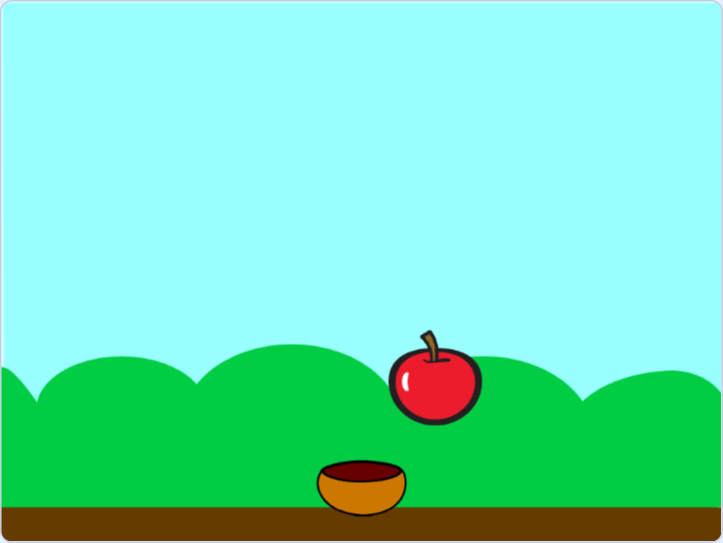
Every time round the loop the apple drops 5 steps. When it's below -170, near the bottom, it jumps back to a random spot at the top. Green flag:
Step 5 — Catch it and keep score
A score is a number the game has to remember: a variable. Click
the Variables category, then Make a Variable,
and call it score:
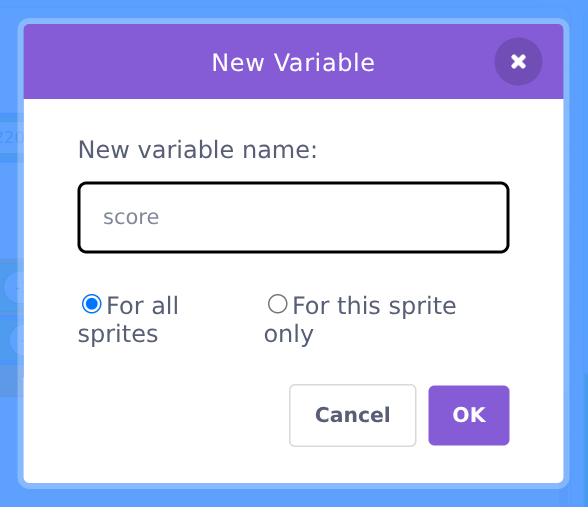
A box showing the score appears on the stage. Now add to the Apple's script: set score to 0 at the start, and a second if inside the forever, for when the apple touches the bowl:
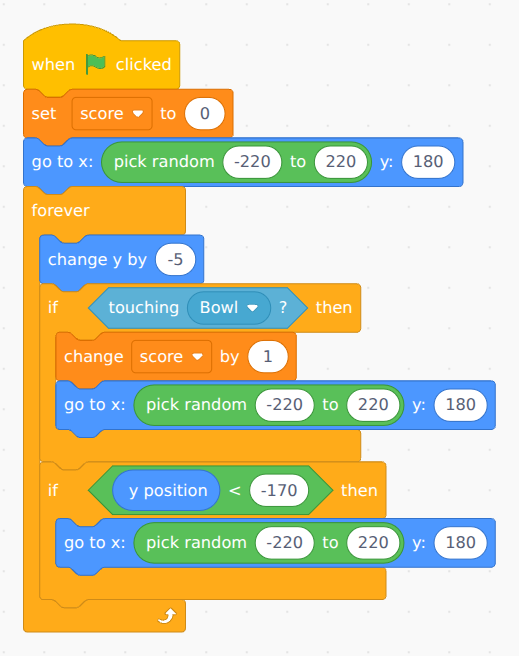
- set score to 0 and change score by 1 — Variables
- touching mouse-pointer? — Sensing (change it to Bowl)
This is collision detection: every time round the loop, the apple asks "am I touching the bowl?". If yes, a point, and back to the top. Green flag, and catch some:
step-4.sb3 — the finished game
Look at what you built: an action (move the bowl), feedback (the apple jumps away), a reward (the score) and a repeat (a new apple). That's the core loop from the last workshop.
Make it your own
Try at least one. They get harder as you go down.
Sound
Click the Apple, open the Sounds tab and add a sound from the library. Then put start sound (Sound category) inside the if touching Bowl.
Faster and faster
Make a variable speed. Set it to 5 at the start, use
change y by with 0 - speed in it, and
change speed by 0.5 on every catch.
A timer
A variable time, set to 30. A second script on the Stage:
repeat until time = 0: wait 1 seconds,
change time by -1. Then stop all.
A bad apple
Right-click the Apple and duplicate it. Give the copy a different costume, and make touching the bowl take a point away.
Power-ups
Something rare that falls and, when caught, makes the bowl wider for a few seconds (Looks → change size by, then change it back).
Your own idea
New costumes, a game over screen, a high score… it's your game.
When it doesn't work
- Nothing moves? Did you click the green flag? Are the blocks snapped together — drag the top block, and everything underneath should come with it.
- The wrong sprite moves? Scripts belong to the sprite that was selected when you built them. Check which sprite is highlighted.
- Catching does nothing? The touching block must say Bowl, and it must be inside the forever, so it's checked all the time.
- Too fast or too slow? Change the numbers: a smaller change y by is a slower apple.
- Test one thing at a time. Get the bowl moving before you touch the apple. If it works, move on. If it doesn't, fix it before you add more.
Same game, other tools: Godot (a real game engine) and HTML, CSS & JavaScript (from three empty files).